
 Ask anyone who has just moved into a new office what went wrong, and the answer is rarely the paint. It’s the Wi-Fi that dies near the boardroom, the video call where nobody can hear the person at the far end, or the camera that was bolted up before anyone checked what it could actually see.
Most of these problems come from one habit: technology gets planned last. This guide covers the four systems every fit-out has to think about, which are the network, phones, audio-visual (AV), and CCTV. It also explains where VAS (value-added services) fit in, because getting the gear installed is only half the job.
Why Technology has to be Planned Early
Tech and construction are more tangled together than people expect. Cables sit inside walls, ceilings, and floors. Racks need space, power, and cooling. A big screen needs a wall that can carry it. Cameras need a clean mounting spot with a clear view.
Leave all this until the interiors are finished and you’ll probably run into:
- Walls and ceilings being cut open just to pull a few cables
- Wiring that stays visible because nobody planned a route for it
- Wi-Fi dead spots that nobody spotted on the floor plan
- A move-in date that slips
The fix is simple. Bring your technology partner in on day one, alongside your architect and interior designer, not after them.
1. Network: The part everything else leans on
Phones, cameras, video calls, cloud software, printers: they all run over the network. When it’s weak, the whole office feels slow, and people blame whichever tool they happen to be using at the time.
What a solid office network is made of
Structured cabling. This is the permanent wiring in the building. Cat6 or Cat6A is the usual choice now, with fiber linking floors or buildings. Good cabling can last 10 to 15 years, so it’s the one place where cutting costs usually backfires.
Rack and cabinet. Your switches and patch panels live here. Give it a secure, cool room with enough power sockets, and don’t squeeze it into a cupboard with no airflow.
Switches. Go for PoE (Power over Ethernet) switches. One cable then carries both data and power to cameras, IP phones, and Wi-Fi access points, which means fewer sockets and less clutter.
Wi-Fi. A few routers scattered around won’t cut it. Do a proper site survey first, which maps how the signal behaves around your actual walls and furniture. Wi-Fi 6 or newer is a sensible target, with enough access points for the people and devices you’ll really have.
Firewall and security. A business-grade firewall is the minimum. Split the network into separate zones (VLANs) for staff, guests, cameras, and phones, so a problem in one doesn’t spill into the others.
Internet. Think about backup as well as speed. Plenty of offices run two providers, so when one drops, the other picks up automatically.
A few planning habits that pay off
- Count the people, laptops, phones, and smart devices you’ll have today, then add 30 to 50 percent for growth.
- Put extra cable points in meeting rooms, reception, and the pantry. Those are the spots people always wish they had more of.
- Label every cable and port. It sounds dull, and it saves hours later.
2. Phones: not just a dial tone anymore
Older phone systems needed their own lines and a bulky box in a cupboard. Modern ones run over your network and the internet, which changes what’s possible.
You’ll mainly be choosing between these:
- IP phones (VoIP). Calls travel over your network. A desk phone needs just one cable and gets its power through PoE.
- Softphones and mobile apps. Staff make and take office calls from a laptop or mobile. Handy for hybrid and remote teams.
- Contact center tools. If you run sales or support, you can add call queues, recording, and reports.
Before you pick one, work out:
- How many users you have, and who really needs a desk phone rather than an app
- Your call volume and how many lines that means
- Which features matter: voicemail-to-email, an auto attendant (“press 1 for sales”), call forwarding, conference calling
- What happens when the internet goes down (forwarding calls to mobiles is the easy answer)
- Voice quality settings, known as QoS, so calls stay clear even when the network is busy
3. Audio-visual: where meetings are won or lost
AV means the screens, projectors, speakers, microphones, and cameras used in meetings and presentations. Since hybrid work became normal, it’s no longer a nice extra. One bad video call in front of a client can undo a lot of good work.
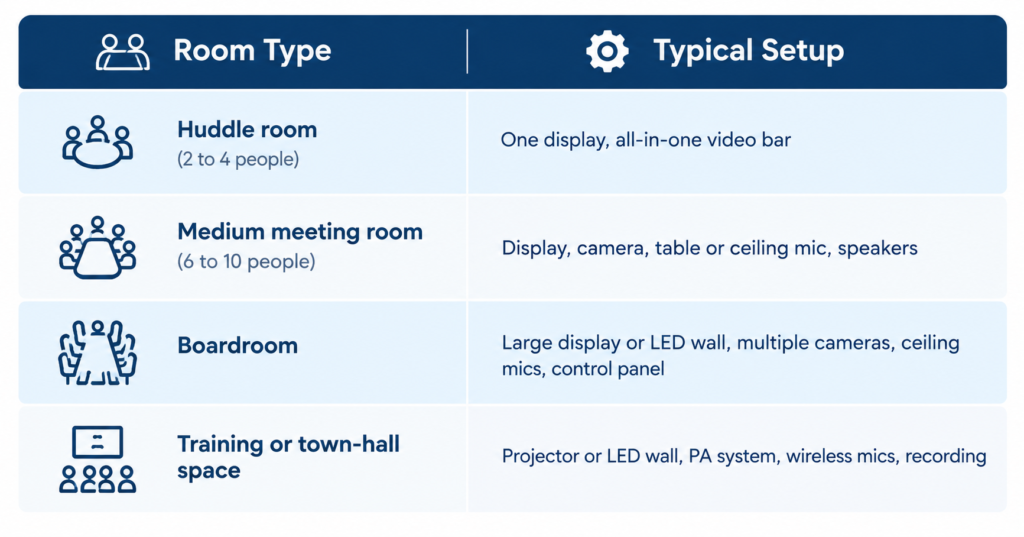
What goes into a meeting room
Display. A large commercial-grade screen, or an LED wall for bigger rooms. Size it by the length of the room, so the person in the back row can still read the text.
Camera. A wide-angle or auto-tracking camera lets remote participants see everyone, not just whoever sits closest.
Microphones. This is the part most people forget, and it matters more than anything else here. Poor audio frustrates people far more than poor video. Ceiling or table microphones pick up voices much more clearly than a laptop ever will.
Speakers. Position them so voices sound natural and nothing echoes.
Wireless presentation. People can share their screen without hunting for cables and adapters.
Room control and booking. A small touch panel tells people whether the room is free and starts a meeting in one tap.
The room itself counts
AV and room design have to work together. Hard walls and lots of glass create echo. Carpets, soft panels, and curtains tame it. Lighting shouldn’t hit the screen directly or throw shadows across faces on camera.
Matching the room to the kit
4. CCTV: Security that does some good
People tend to think of CCTV as something you check after a theft. It does more than that. It supports safety, tracks visitors, works alongside door access, and helps settle disputes.
Decisions worth making early
Camera types. Domes suit indoor spaces and are hard to tamper with. Bullet cameras work well outdoors or for long views. PTZ cameras pan, tilt, and zoom, which helps in large open areas.
Resolution. 4MP to 8MP gives clear images. Higher resolution helps when you need to read a number plate or recognize a face, but it also eats storage.
Placement. Cover entrances, exits, reception, the server room, cash or stock areas, parking, and corridors. Avoid pointing cameras straight at windows or bright lights, since glare ruins the image.
Recording and storage. An NVR (Network Video Recorder) saves the footage. Decide how long you want to keep it, say 30 or 90 days, because that number sets how much storage you need.
Night vision. For dark areas, pick infrared or low-light cameras.
Privacy and compliance. Keep cameras out of washrooms and private spaces, tell staff and visitors that CCTV is in use, and follow local rules on storing footage.
Smart features that can be useful
- Motion detection that sends alerts to your phone
- Face or number-plate recognition
- People counting, which helps with space planning
- Links to door access systems
How the four systems fit together
These aren’t four separate projects. They all sit on the same foundation, the network.
- Cameras and IP phones draw power and data through the same PoE switches.
- Video calls need both strong Wi-Fi and good AV gear.
- Door access and CCTV can be linked, so you can see who walked in whenever a door opens.
- A single central rack keeps things tidy and easy to support.
Design them together and you save on cabling, power, and day-to-day management. You also avoid the classic standoff where three vendors each say the problem belongs to someone else.
How VAS Technologies Help
VAS stands for value-added services: everything that goes beyond supplying and installing the equipment. Buying a car is a decent comparison. The installation is the purchase. VAS is the servicing, the insurance and the roadside help that keep it on the road.
Here’s what that looks like in each area.
Planning and Design
- Site surveys and Wi-Fi heat mapping, so weak spots show up before you build
- Technology drawings that line up with the interior and electrical plans
- Budget and growth planning, so you neither overspend nor run out of capacity
Installation and Handover
- Project management that coordinates with civil, electrical, and interior teams
- Testing and certification of cables and systems before go-live
- Documentation and staff training, so your team knows how everything works
Network
- 24/7 monitoring that spots trouble before users do
- Managed firewall and regular security updates
- Wi-Fi tuning when the layout or headcount changes
- Backup internet and failover management
- Cloud backup and disaster recovery support
Phones
- Managed cloud phone service, with users added or removed easily
- Call analytics showing missed calls, peak hours, and agent performance
- Call recording and compliance tools for regulated industries
- CRM integration, so customer details pop up as the call comes in
AV
- Remote monitoring that shows which meeting-room devices are offline
- A help desk and on-site support for urgent meeting problems
- Room usage reports that show which rooms are overused or sitting empty
- Software and firmware updates to keep devices secure
- AV-as-a-service, where you pay monthly rather than a big sum upfront
CCTV
- Remote video monitoring by a trained control room
- Smart analytics such as intrusion, crowd and loitering alerts
- Cloud video storage and backup
- Health checks confirming every camera is recording, the lens is clean and the angle is right
- Integration with access control, alarms and visitor management
Ongoing Support
- Annual maintenance contracts (AMC) with clear response times
- One point of contact for network, phone, AV and CCTV issues
- Spare equipment and fast replacement
- Regular reviews and upgrade advice, so nothing quietly becomes outdated
- Reports on system health, uptime and incidents
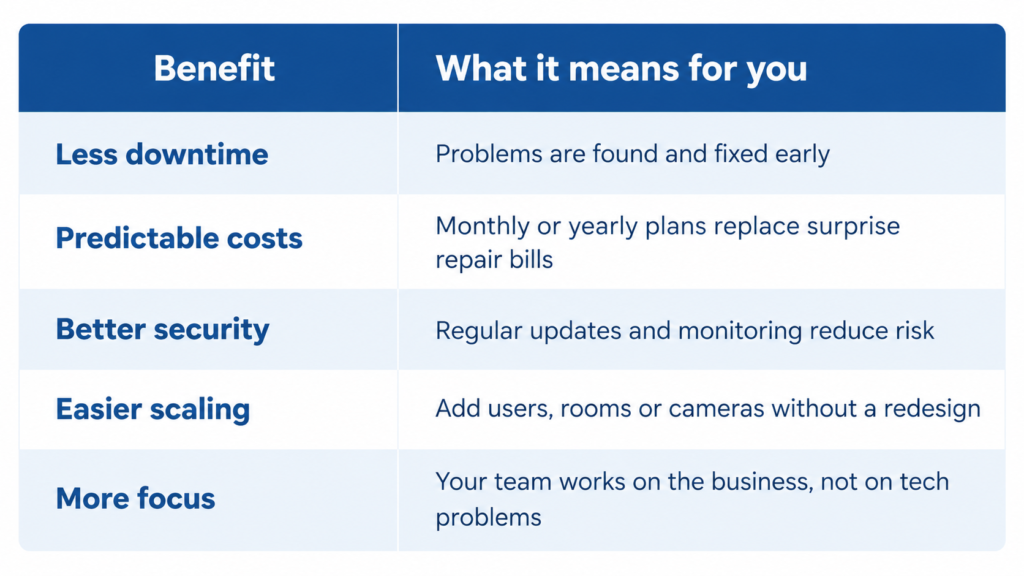
What you get out of it
A checklist for your fit-out
- Define your needs: staff numbers, meeting rooms, security zones and growth plans.
- Appoint a technology partner early and include them in design meetings.
- Plan cabling and power points before walls and ceilings are closed.
- Design the network first, then build phones, AV and CCTV on top of it.
- Pick equipment that can scale with your team.
- Cover both physical security (CCTV, access) and digital security (firewall, passwords).
- Test everything before move-in day.
- Train staff on phones, meeting rooms, and basic troubleshooting.
- Sign up for VAS and support, so someone is responsible after handover.
- Review once a year as headcount and working style change.
Mistakes that come up again and again
- Planning technology after the interior design is finished
- Buying the cheapest cabling, then paying to replace it later
- Ignoring room acoustics in meeting rooms
- Using home-grade Wi-Fi routers in a business office
- Installing cameras without checking angles and lighting
- Having no backup internet or backup power for critical equipment
- Using a different vendor for every system with nobody in charge overall
- Skipping documentation, which makes future changes harder
Frequently Asked Questions (FAQ)
1. When should I start planning office technology in a fit-out?
As early as you can, ideally during the design stage. Cable routes, rack locations, ceiling points, and power needs all have to be settled before the walls and ceilings are finished.
2. How much internet speed does my office need?
It depends on headcount and what people do all day. As a rough guide, 5 to 10 Mbps per active user works for a typical office. Go higher if you’re on video calls a lot or use heavy cloud tools, leave room for growth, and think about a second line for backup.
3. Is Wi-Fi enough, or do I still need wired points?
You need both. Wi-Fi is great for laptops and mobiles, but desks, meeting rooms, printers, phones, and cameras do better on a cable. It’s faster and more stable.
4. What is PoE and why does it matter?
PoE (Power over Ethernet) sends power and data down one network cable. Cameras, IP phones, and Wi-Fi access points can then run without their own power sockets, which saves money and keeps things neat.
5. Should I choose a traditional phone system or a cloud one?
Most new offices go with cloud or IP-based systems. They’re cheaper to scale, easier to manage, and suit hybrid teams. Traditional systems still make sense in a few special cases, but they’re getting rarer.
6. What makes a meeting room good for video calls?
Clear audio first. After that, a decent camera, a screen of the right size, and a room where echo and lighting are under control. Bad sound ruins more meetings than anything else.
7. How many CCTV cameras do I need?
There’s no magic number. It depends on floor area, entry points, and risk areas, and a security survey will show you where cameras are needed. Start with entrances, exits, reception, server rooms, and any high-value areas.
8. How long should CCTV footage be kept?
Many offices keep 30 to 90 days. The right figure depends on your business and local rules. Keep in mind that longer retention means more disk space.
9. Can CCTV, access control and alarms work together?
Yes. When they’re linked, you can match door events to camera footage, get alerts, and review incidents faster. Plan it from the start so the right devices and cabling go in.
10. What does VAS mean in office technology?
Value-added services. It covers extras like monitoring, maintenance, security management, analytics, training, and support that go beyond basic installation.
11. Should I manage technology in-house or use a VAS provider?
Small and mid-sized offices usually do better outsourcing VAS, since it saves hiring a full IT and AV team. Larger companies often mix the two: an internal team for daily needs and a partner for specialist monitoring, security, or 24/7 cover.
12. How often should office technology be upgraded?
Cabling can last 10 to 15 years. Network switches and Wi-Fi are usually reviewed every 5 to 7 years, and CCTV cameras often last 5 to 8 years. Phones and AV software need regular updates. A yearly review with your service provider helps you plan upgrades without surprises.
13. How do I keep my office network secure?
Use a business-grade firewall, keep guest and staff networks separate, keep devices updated, turn on multi-factor login, and have someone monitoring for threats. Staff awareness training helps too.
14. What happens if the internet goes down?
With a backup line, failover settings and call forwarding to mobiles, the office can carry on. A UPS (backup battery) protects critical equipment from power cuts.
Final Thoughts
A great office isn’t only about how it looks. It’s about how well it works day to day. A strong network, clear phones, reliable AV and smart CCTV make your team more productive and your space more secure.
Installation is just the start, though. VAS gives you monitoring, support, analytics and upgrades, so everything stays healthy long after the fit-out is finished.
So start early, treat the network, phones, AV and CCTV as one connected setup, and choose a partner who’s still around after handover. Do that, and you’ll have an office that works properly from day one and still has room to grow.

Related Post
- Office Fit-Out Technology Guide: Network, Phones, AV and CCTV

- SIRA CCTV Approval in Dubai: Cost, Steps and Timeline for Restaurants, Shops and Warehouses
- Biometric & Access Control System Installation: What Dubai Businesses Actually Need to Know
- How to Pass a SIRA CCTV Inspection in Dubai: Checklist & Common Failures
- Essential Cybersecurity Guidelines for UAE Companies Handling Sensitive Data
- Designing a Frictionless Hybrid Meeting Room: Best AV Solutions for Teams & Zoom